.svg)
.svg)
.svg)
.svg)
.svg)
.svg)
.svg)
.svg)
.svg)


.svg)
.svg)
.svg)
.svg)
.svg)
.svg)
.svg)
.svg)

.svg)
.svg)
.svg)

.svg)

.svg)
.svg)
.svg)
.svg)
.svg)


.svg)
.svg)
.svg)
.svg)
.svg)
.svg)
.svg)




3 hr
Wildcard: Bring your nonprofit’s idea to life
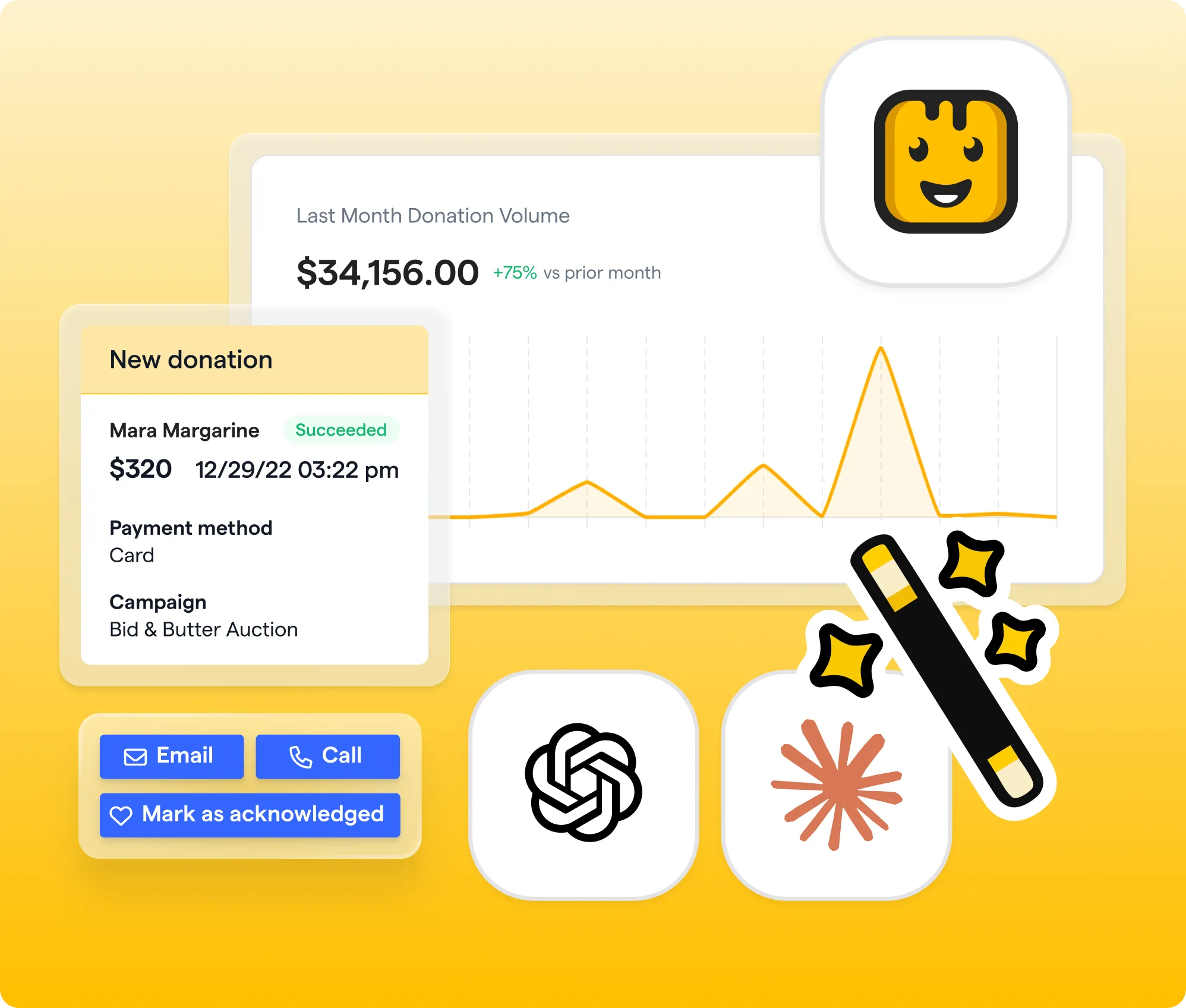
Connect Givebutter to the AI tool you already use, then build something useful for your organization with your fundraising data.
What you'll create
- A connection between Givebutter and an AI tool
- A useful first version of your idea
- A reusable prompt or process that your team can run again
Features you’ll use
- AI connectors
Before you begin
- Confirm that you have Admin access in Givebutter and can authorize the connection.
- Make sure you have campaign, transaction, or supporter data in Givebutter to explore. If you’re new to Givebutter, import your contacts and transaction history before starting.
- Review your organization’s policies for using AI and donor data.
- Avoid entering donor information directly into an AI tool outside the approved Givebutter connection.
Start here
Get a quick walkthrough of what you’re about to create, then follow the steps below to bring it to life in Givebutter


Visit our help center or contact us.
Choose what to build
If you already have an idea, start by defining what it needs to accomplish. If you need inspiration, think about the questions, reports, or repetitive tasks that regularly take up your team’s time.
You might build:
- A donor briefing with giving history and recent activity
- A campaign summary formatted for a board update
- A weekly list of lapsed donors who need follow-up
- A morning briefing highlighting recent gifts and campaign activity
- A simple fundraising dashboard
Choose something your team would realistically use, then define:
- What: What are you building?
- Who: Who will use it?
- Purpose: What should it help them understand or do?
- Format: What should the finished result look like?
Connect Givebutter
Choose a compatible AI tool your team already uses, such as ChatGPT, Claude, Cursor, or Lovable. For Claude Code, Cursor, and other supported assistants, check the AI connector setup guidance for the latest options and instructions.
Inside your chosen AI tool, add the Givebutter connection. You’ll be directed to Givebutter to sign in and authorize access.
Review the requested access before approving it. Your existing Givebutter permissions determine which account information is available through the connection.
Once connected, your AI tool can work with the campaign, transaction, and supporter data available to you in Givebutter.
Check the connection
Before building your idea, confirm that the AI tool can find and accurately interpret your Givebutter data.
You can do this by asking a few questions you already know the answers to, such as:
- Which campaigns are currently active?
- How much has [campaign name] raised?
- Show me donations from the last 30 days.
- Who are our five largest recent donors?
Compare the responses with the information in Givebutter. If a result is incomplete or inaccurate, make the question more specific by naming the campaign, timeframe, transaction type, or other relevant criteria.
This quick check helps you understand which data is available and how precisely you need to ask for it. Remember that the Givebutter connection provides access to data; it does not allow the AI tool to make changes inside your Givebutter account.
Build the first version
Describe your idea as if you were assigning it to a teammate. Explain what you want to build, who will use it, what Givebutter data it should include, and how the result should be organized.
For example:
Build a simple weekly dashboard for our executive director. Show our active campaigns and, for the last seven days, the total amount raised, new donors, new recurring gifts, and five largest donations. Use our Givebutter data and make the dashboard easy to scan in under one minute.
Your first version could be a dashboard, donor briefing, weekly summary, research tool, or repeatable process. It does not need to include every possible feature.
Check important names, totals, dates, and conclusions against Givebutter before moving on. Save this first version so you can test and improve it in the next step.
Improve & save your work
Use the first version yourself, then ask someone else who would benefit from it to try it.
Find out:
- Does it answer the intended question?
- Is anything important missing?
- Is the result easy to understand?
- Would they use it again?
Use their feedback to improve your build. You might simplify the layout, add or remove a data point, narrow the timeframe, or change how the information is organized.
Check the revised result against Givebutter again. Once it is accurate and useful, save the final prompt and any instructions your team will need to run it again.
Take it further
Once the first version is accurate and useful, consider how it could fit into your team’s existing workflow.
You might:
- Adapt it for another campaign, program, or audience.
- Turn the result into a recurring meeting brief.
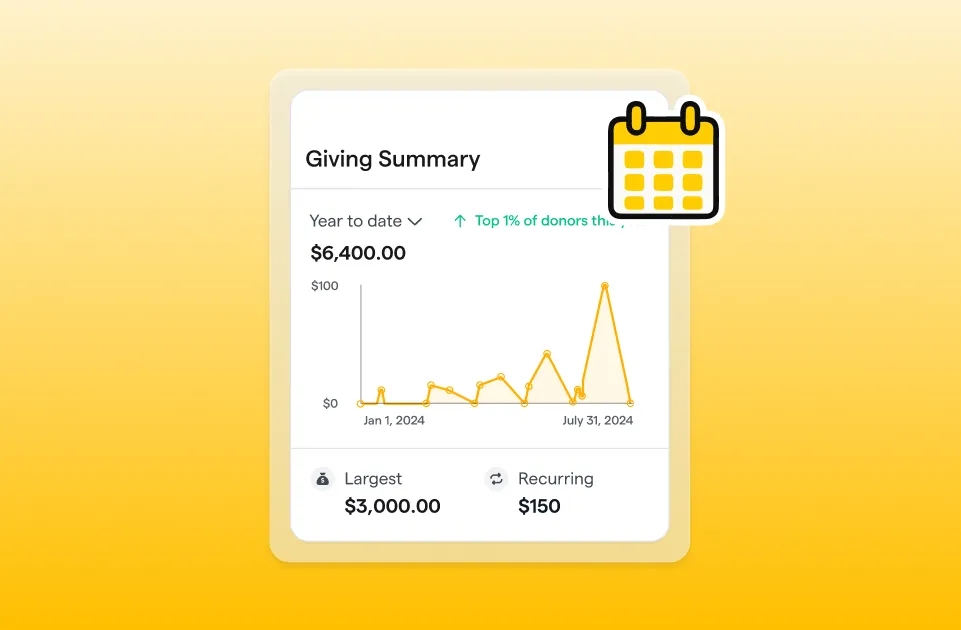
- Create a permanent dashboard your team can revisit.
- Send the result to another tool your organization already uses.
Connecting tools such as Gmail, Slack, Notion, or Asana requires separate integrations and permissions. Confirm that your AI tool supports the connection, and have someone review the information before anything is sent or updated.
Add one useful capability at a time. A simple process your team trusts and repeats is more valuable than an ambitious build no one maintains.
.webp)

.svg)
.svg)