.svg)
.svg)
.svg)
.svg)
.svg)
.svg)
.svg)
.svg)
.svg)


.svg)
.svg)
.svg)
.svg)
.svg)
.svg)
.svg)
.svg)

.svg)
.svg)
.svg)

.svg)

.svg)
.svg)
.svg)
.svg)
.svg)


.svg)
.svg)
.svg)
.svg)
.svg)
.svg)
.svg)




1.5 hr
Transform your Wix site into a fundraising hub
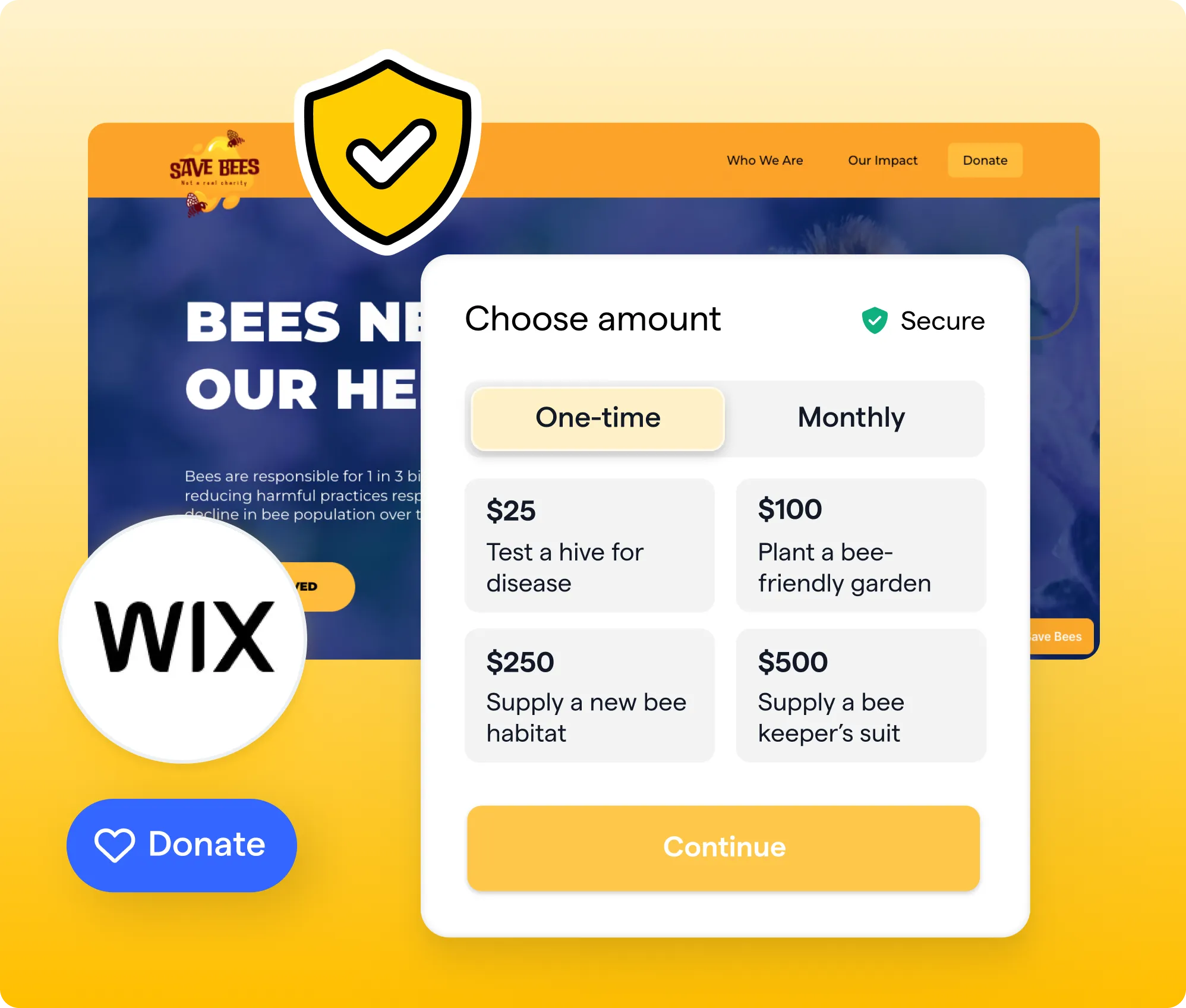
Add an always-on giving experience to your Wix site so visitors can support your mission without leaving the page.
What you'll create
- An always-on donation option on your Wix site
- An optional campaign, event, or signup feature
- A tested, mobile-friendly supporter journey
Features you’ll use
- Wix integration
- Givebutter widgets
Before you begin
- Create or choose an existing Givebutter campaign to power your always-on donation experience.
- Make sure your Givebutter account is ready to accept donations. If prompted, complete the Stripe connection before adding your widgets.
- Already have a Wix site? Confirm you're the owner of the site—only the account owner can connect it. Don't have one yet? You'll create one in Step 1, right from Givebutter. The first 150 people to sign up get 100% off for 3 months with code givebutter_wix_2026.
- Use a desktop computer. You can't set up the integration from a phone or tablet.
- Gather any copy or images you want to place near your widgets.
Start here
Get a quick walkthrough of what you’re about to create, then follow the steps below to bring it to life in Givebutter


Visit our help center or contact us.
Connect Givebutter & Wix
From your Givebutter dashboard, go to Settings, select Integrations, and find Wix. Open the integration details and follow the prompts to connect an existing Wix site or create a Wix website.
You don't need to visit the Wix App Market. If you create a site, the Givebutter app is installed for you. If you connect a site you already have, Wix prompts you to add it.
Once you're connected, open the Wix editor, click Add Elements, then App Widgets, and look for Givebutter Donation Widgets under Givebutter.
Every donation is still processed through Givebutter. Wix never touches the funds, never sees donor payment information, and doesn't take a cut of what you raise. Contacts and transactions are recorded in your Givebutter account.
Follow the Wix integration setup guide if you need more help.
Choose what to feature
Start with one always-on donation option connected to your general giving campaign. This might be a donation button in your navigation or a form on a dedicated donation page.
Once that’s planned, decide whether you also want to feature another way to engage:
- A current fundraiser: Highlight a specific need with a goal bar, progress bar, or donation form.
- An upcoming event: Add a button that lets visitors purchase tickets.
- Community updates: Add a signup form for visitors who want to follow your work.
Give each option a distinct purpose. General giving supports your broader mission, a fundraiser or event offers a timely way to participate, and a signup form helps grow your community.
Add your widgets
If you created your site from Givebutter, it already has a donation button tied to your campaign. You can keep it, move it, or add more. To add a widget, open the Wix editor, click Add Elements, choose App Widgets, then Givebutter Donation Widgets.
Position the widget somewhere visitors can easily find it, such as your navigation or a dedicated donation page. Add a short explanation of what donations support and why they matter.
If you chose an optional campaign, event, or signup feature—and you're on a Wix Premium plan—repeat the process with the appropriate widget on the most relevant page.
Test & publish your site
Preview the pages you created or updated on desktop and mobile.
Confirm that:
- Visitors can quickly find your always-on donation option.
- The page clearly explains what a general gift supports.
- Each widget connects to the intended Givebutter campaign.
- Buttons and forms deliver the experience their labels promise.
- Visitors can complete a donation without unnecessary steps.
- Any optional campaign, event, or signup feature is clear and easy to use.
- Nothing is cut off, hidden, or difficult to use on mobile.
Complete a test transaction and confirm that the contact and transaction information appear correctly in Givebutter. If you added a signup form, test that experience too.
Saving your site isn't the same as publishing it. When your pages work as expected, click Publish in the Wix editor to take them live. Wix's guide to publishing your site walks through it.
Take it further
You don’t need a complex website to create a better fundraising experience. If you want help refining your site, use Wix’s resources to focus on a few high-impact details:
- Visit Wix Learn for tutorials on layout, design, and visitor experience.
- Use the Wix Help Center when you have a technical question.
- Review your site with the Wix mobile editor to adjust anything that does not translate well to a smaller screen.
Focus on making your giving options easy to find, understand, and use. Even small improvements to placement, messaging, and mobile layout can make a meaningful difference.
.webp)


.svg)
.svg)